跳转到主要内容
图像编辑

图像编辑 - Wan2.7/2.6/2.5

万相图像编辑模型系列支持多图输入与多图输出,通过文本指令实现图像编辑、多图融合、主体特征保持、目标检测与分割等能力。

快速开始

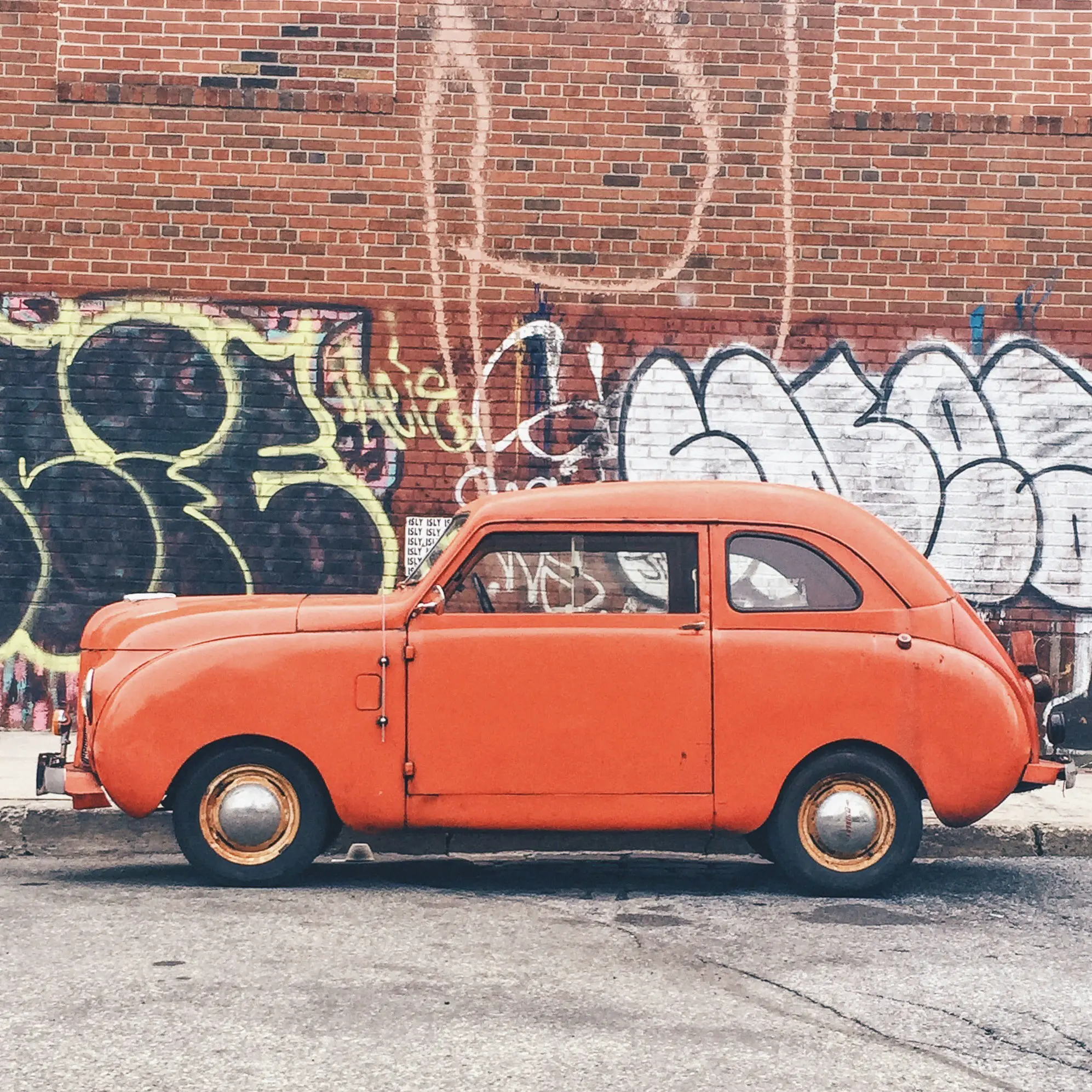
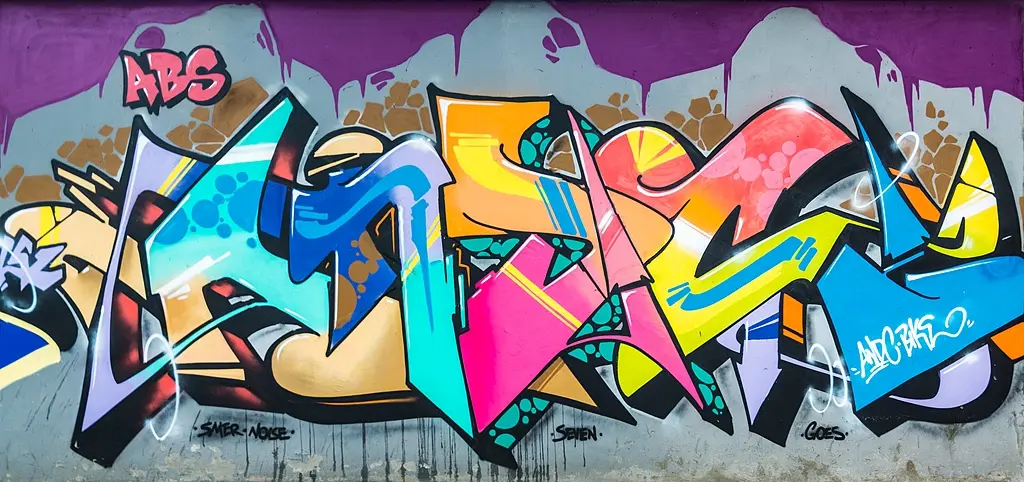
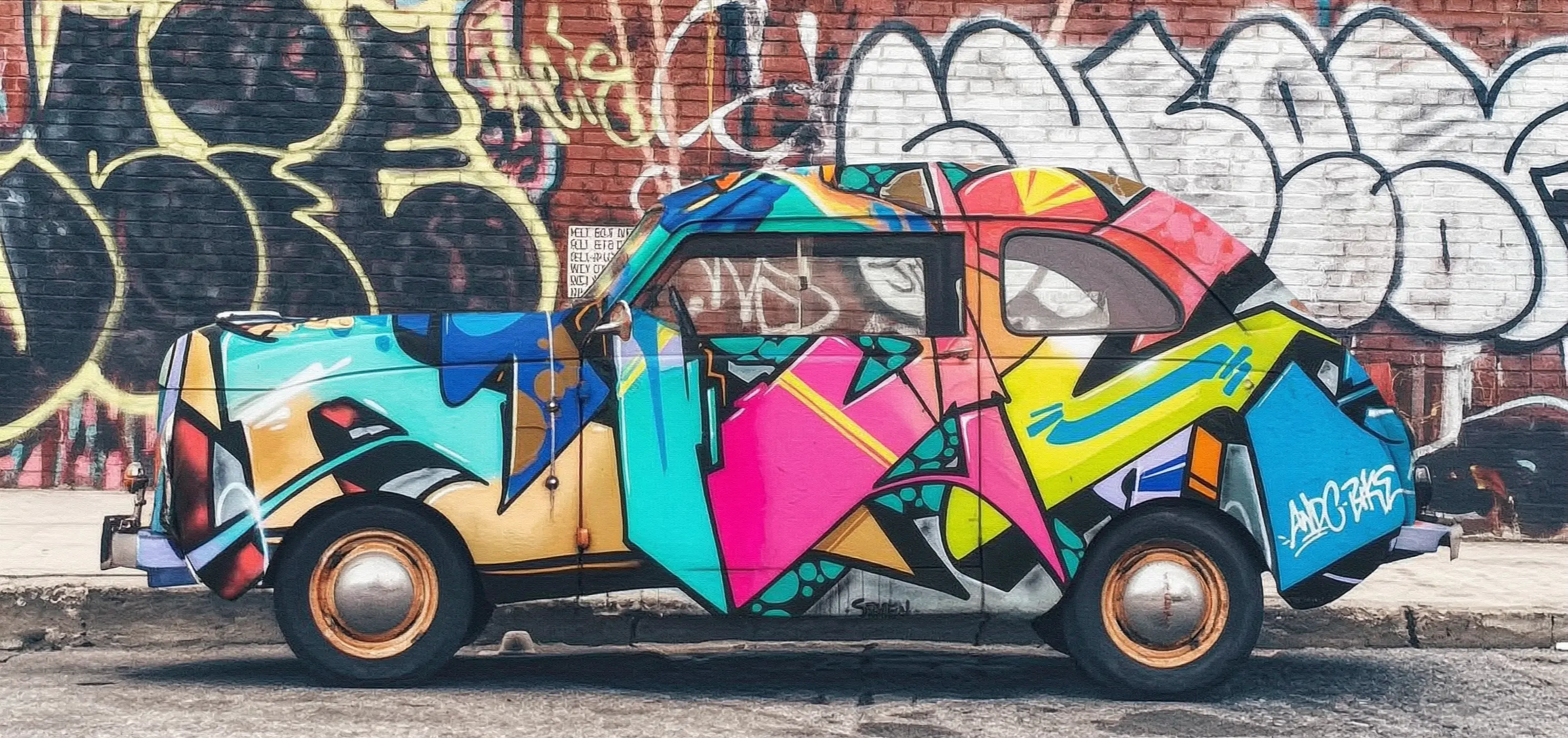
本示例将演示如何使用wan2.7-image-pro模型,基于2张输入图片和提示词生成编辑后的图像。 提示词:把图2的涂鸦喷绘在图1的汽车上
输入图像1输入图像2输出图像(wan2.7-image-pro)
car
paint
output
  • 同步调用
  • 异步调用
请确保 DashScope Python SDK 版本不低于 1.25.15,DashScope Java SDK 版本不低于 2.22.13
import os
import dashscope
from dashscope.aigc.image_generation import ImageGeneration
from dashscope.api_entities.dashscope_response import Message

dashscope.base_http_api_url = 'https://dashscope.aliyuncs.com/api/v1'

# 如果未设置环境变量,请将下行替换为:api_key="sk-xxx"
api_key = os.getenv("DASHSCOPE_API_KEY")

message = Message(
  role="user",
  # 支持本地文件,如 "image": "file://car.png"
  content=[
    {
      "text": "把图2的涂鸦喷绘在图1的汽车上"
    },
    {
      "image": "https://help-static-aliyun-doc.aliyuncs.com/file-manage-files/zh-CN/20251229/pjeqdf/car.webp"
    },
    {
      "image": "https://help-static-aliyun-doc.aliyuncs.com/file-manage-files/zh-CN/20251229/xsunlm/paint.webp"
    }
  ]
)
print("----同步调用,请稍候----")
rsp = ImageGeneration.call(
    model='wan2.7-image-pro',
    api_key=api_key,
    messages=[message],
    watermark=False,
    n=1,
    size="2K"
  )

print(rsp)
wan2.5-i2i-preview使用不同的API端点和参数传入方式,其调用示例如下:

同步调用(wan2.5)

请确保 DashScope Python SDK 版本不低于 1.25.2,DashScope Java SDK 版本不低于 2.22.2
import base64
import mimetypes
from http import HTTPStatus
from urllib.parse import urlparse, unquote
from pathlib import PurePosixPath

import dashscope
import requests
from dashscope import ImageSynthesis
import os

dashscope.base_http_api_url = 'https://dashscope.aliyuncs.com/api/v1'

# 如果未设置环境变量,请将下行替换为:api_key="sk-xxx"
api_key = os.getenv("DASHSCOPE_API_KEY")

# --- 输入图片:Base64编码 ---
# Base64格式:data:{MIME_type};base64,{base64_data}
def encode_file(file_path):
  mime_type, _ = mimetypes.guess_type(file_path)
  if not mime_type or not mime_type.startswith("image/"):
    raise ValueError("不支持或无法识别的图片格式")
  with open(file_path, "rb") as image_file:
    encoded_string = base64.b64encode(image_file.read()).decode('utf-8')
  return f"data:{mime_type};base64,{encoded_string}"

"""
图像输入方式:
选择以下其中一种:

1. 公网URL — 适用于公开可访问的图片
2. 本地文件 — 适用于本地开发和测试
3. Base64编码 — 适用于私有图片或需要加密传输的场景
"""

# [方式一] 公网图片URL
image_url_1 = "https://img.alicdn.com/imgextra/i3/O1CN0157XGE51l6iL9441yX_!!6000000004770-49-tps-1104-1472.webp"
image_url_2 = "https://img.alicdn.com/imgextra/i3/O1CN01SfG4J41UYn9WNt4X1_!!6000000002530-49-tps-1696-960.webp"

# [方式二] 本地文件(支持绝对路径和相对路径)
# 格式:file:// + 文件路径
# 示例(绝对路径):
# image_url_1 = "file://" + "/path/to/your/image_1.png"     # Linux/macOS
# image_url_2 = "file://" + "C:/path/to/your/image_2.png"  # Windows
# 示例(相对路径):
# image_url_1 = "file://" + "./image_1.png"
# image_url_2 = "file://" + "./image_2.png"

# [方式三] Base64编码图片
# image_url_1 = encode_file("./image_1.png")
# image_url_2 = encode_file("./image_2.png")

print('----同步调用,请稍候----')
rsp = ImageSynthesis.call(api_key=api_key,
                          model="wan2.5-i2i-preview",
                          prompt="将图1中的闹钟放置到图2的餐桌的花瓶旁边位置",
                          images=[image_url_1, image_url_2],
                          negative_prompt="",
                          n=1,
                          # size="1280*1280",
                          prompt_extend=True,
                          watermark=False,
                          seed=12345)
print('response: %s' % rsp)
if rsp.status_code == HTTPStatus.OK:
  # 保存图片到当前目录
  for result in rsp.output.results:
    file_name = PurePosixPath(unquote(urlparse(result.url).path)).parts[-1]
    with open('./%s' % file_name, 'wb+') as f:
      f.write(requests.get(result.url).content)
else:
  print('同步调用失败, status_code: %s, code: %s, message: %s' %
        (rsp.status_code, rsp.code, rsp.message))

异步调用(wan2.5)

请确保 DashScope Python SDK 版本不低于 1.25.2,DashScope Java SDK 版本不低于 2.22.2
import os
from http import HTTPStatus
from urllib.parse import urlparse, unquote
from pathlib import PurePosixPath
import dashscope
import requests
from dashscope import ImageSynthesis

dashscope.base_http_api_url = 'https://dashscope.aliyuncs.com/api/v1'

# 如果未设置环境变量,请将下行替换为:api_key="sk-xxx"
api_key = os.getenv("DASHSCOPE_API_KEY")

# 公网图片URL
image_url_1 = "https://img.alicdn.com/imgextra/i3/O1CN0157XGE51l6iL9441yX_!!6000000004770-49-tps-1104-1472.webp"
image_url_2 = "https://img.alicdn.com/imgextra/i3/O1CN01SfG4J41UYn9WNt4X1_!!6000000002530-49-tps-1696-960.webp"

def async_call():
  print('----创建任务----')
  task_info = create_async_task()
  print('----等待任务----')
  wait_async_task(task_info)

# 创建异步任务
def create_async_task():
  rsp = ImageSynthesis.async_call(api_key=api_key,
                                  model="wan2.5-i2i-preview",
                                  prompt="将图1中的闹钟放置到图2的餐桌的花瓶旁边位置",
                                  images=[image_url_1, image_url_2],
                                  negative_prompt="",
                                  n=1,
                                  # size="1280*1280",
                                  prompt_extend=True,
                                  watermark=False,
                                  seed=12345)
  print(rsp)
  if rsp.status_code == HTTPStatus.OK:
    print(rsp.output)
  else:
    print('失败, status_code: %s, code: %s, message: %s' %
          (rsp.status_code, rsp.code, rsp.message))
  return rsp

# 等待异步任务完成
def wait_async_task(task):
  rsp = ImageSynthesis.wait(task=task, api_key=api_key)
  print(rsp)
  if rsp.status_code == HTTPStatus.OK:
    print(rsp.output)
    # 保存文件到当前目录
    for result in rsp.output.results:
      file_name = PurePosixPath(unquote(urlparse(result.url).path)).parts[-1]
      with open('./%s' % file_name, 'wb+') as f:
        f.write(requests.get(result.url).content)
  else:
    print('失败, status_code: %s, code: %s, message: %s' %
          (rsp.status_code, rsp.code, rsp.message))

# 查询异步任务状态
def fetch_task_status(task):
  status = ImageSynthesis.fetch(task=task, api_key=api_key)
  print(status)
  if status.status_code == HTTPStatus.OK:
    print(status.output.task_status)
  else:
    print('失败, status_code: %s, code: %s, message: %s' %
          (status.status_code, status.code, status.message))

# 取消异步任务,仅PENDING状态的任务可以取消
def cancel_task(task):
  rsp = ImageSynthesis.cancel(task=task, api_key=api_key)
  print(rsp)
  if rsp.status_code == HTTPStatus.OK:
    print(rsp.output.task_status)
  else:
    print('失败, status_code: %s, code: %s, message: %s' %
          (rsp.status_code, rsp.code, rsp.message))

if __name__ == '__main__':
  async_call()

模型选型

  • wan2.7-image-pro、wan2.7-image(推荐):适合对编辑精度要求高、或需要生成多张内容连贯图像的场景。
    • 精准局部编辑:框选图中指定区域,对该区域的对象进行移动、替换或添加新元素,适用于电商修图、设计稿调整。
    • 多格连续图生成:一次输出多张风格统一的图像,适用于漫画分镜、产品系列图、故事连环图。
  • wan2.6-image:适合图文混排或带多张参考图的风格化编辑场景,支持在生成图像时生成对应文字内容,最多支持 4 张参考图输入。
  • wan2.5-i2i-preview:适合简单的图像编辑和多图融合。
各模型的输入和输出规格见输入图像规格设置输出图像分辨率

效果展示

图生组图

输入图像输出图像
输入人像
output
输入人像2
output

交互式编辑

输入图像输出图像
交互式编辑输入
交互式编辑输出
在图1基础上编辑,将图1框选的冰块替换成图2框选的水果,保持其他细节不变
交互式编辑输入2
交互式编辑输出2
将图1中框选的图案放置到图二中框选处

多图融合

输入图像输出图像
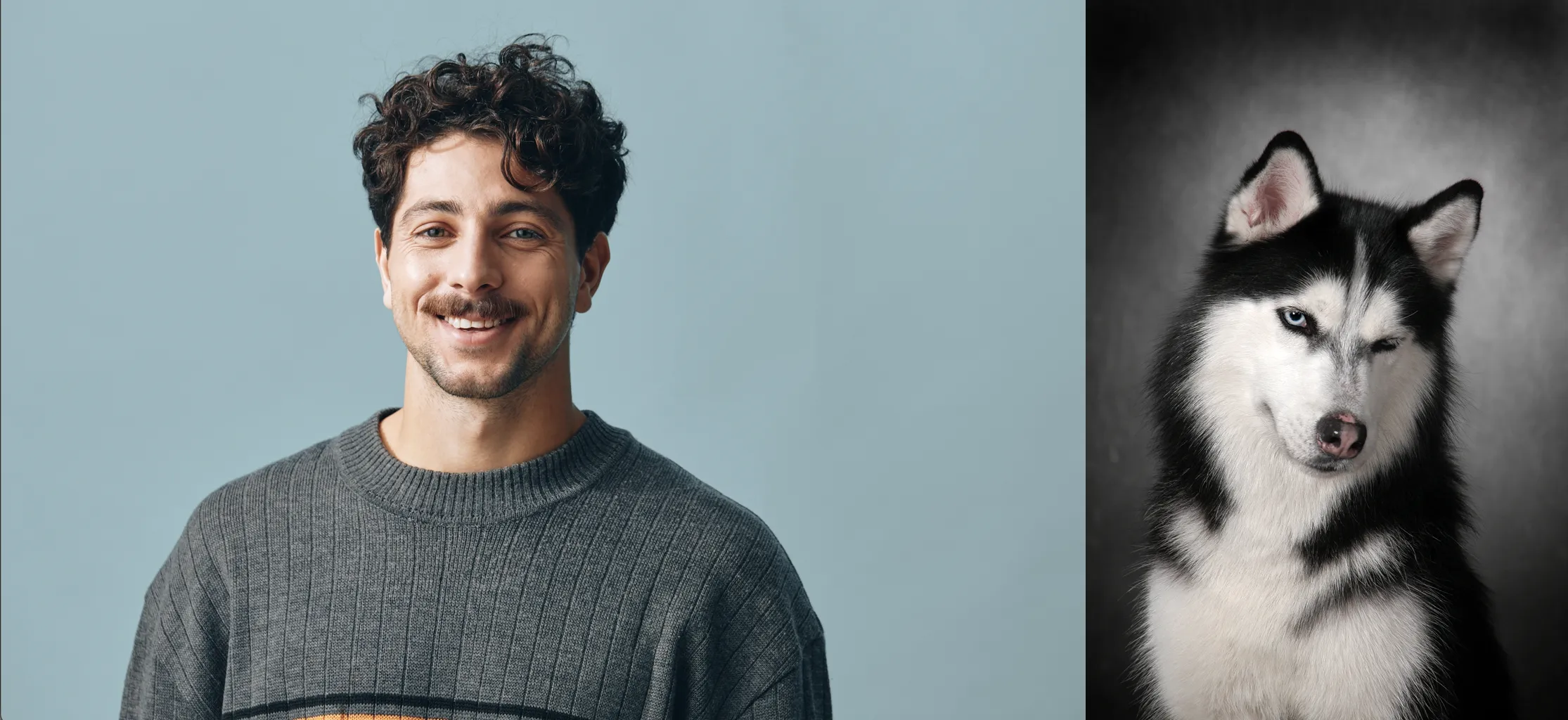
多图融合输入1
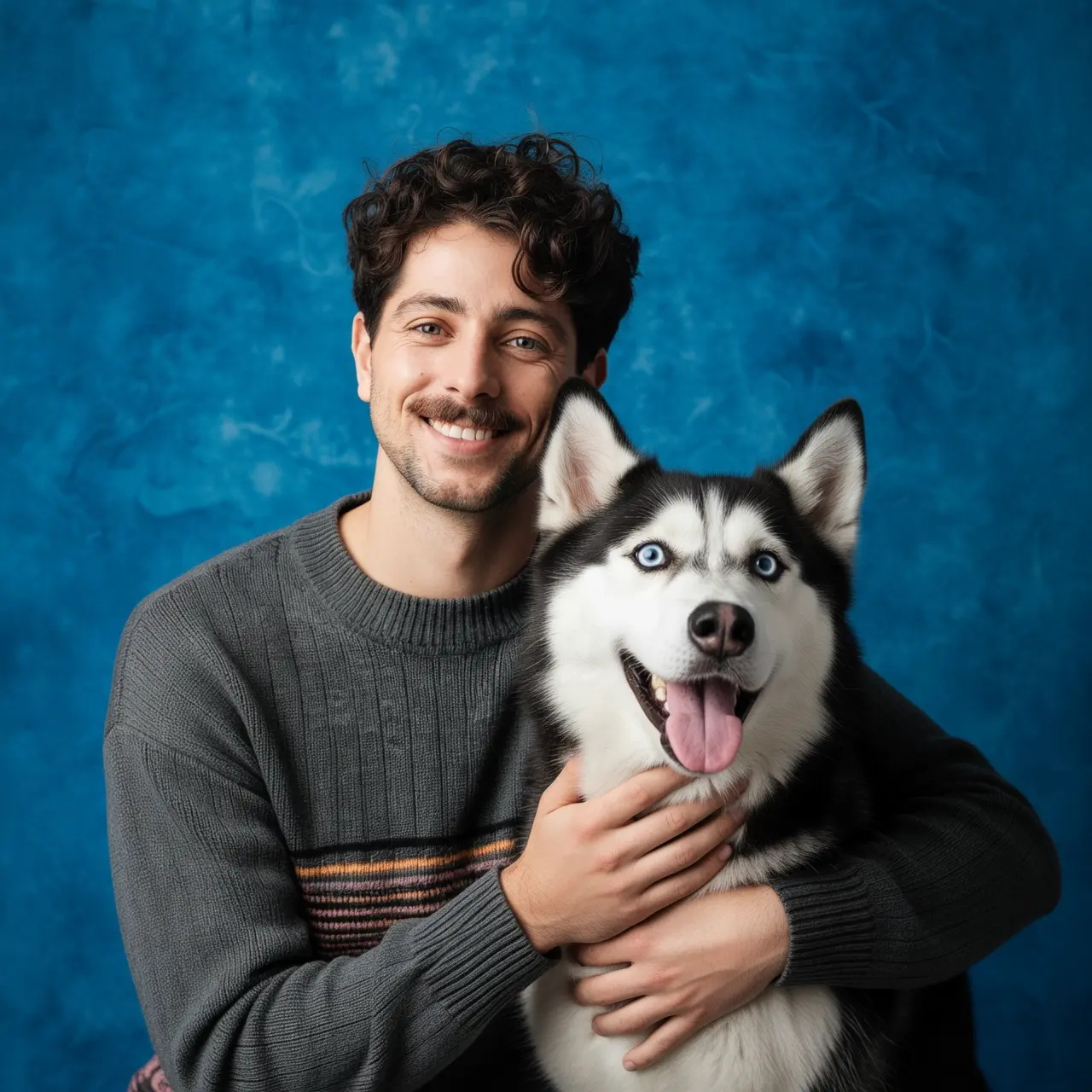
多图融合输出1
给图1的男生和图2的狗拍一张写真,男生搂着这只狗,人和狗都很开心,摄影棚柔和灯光,蓝色纹理背景
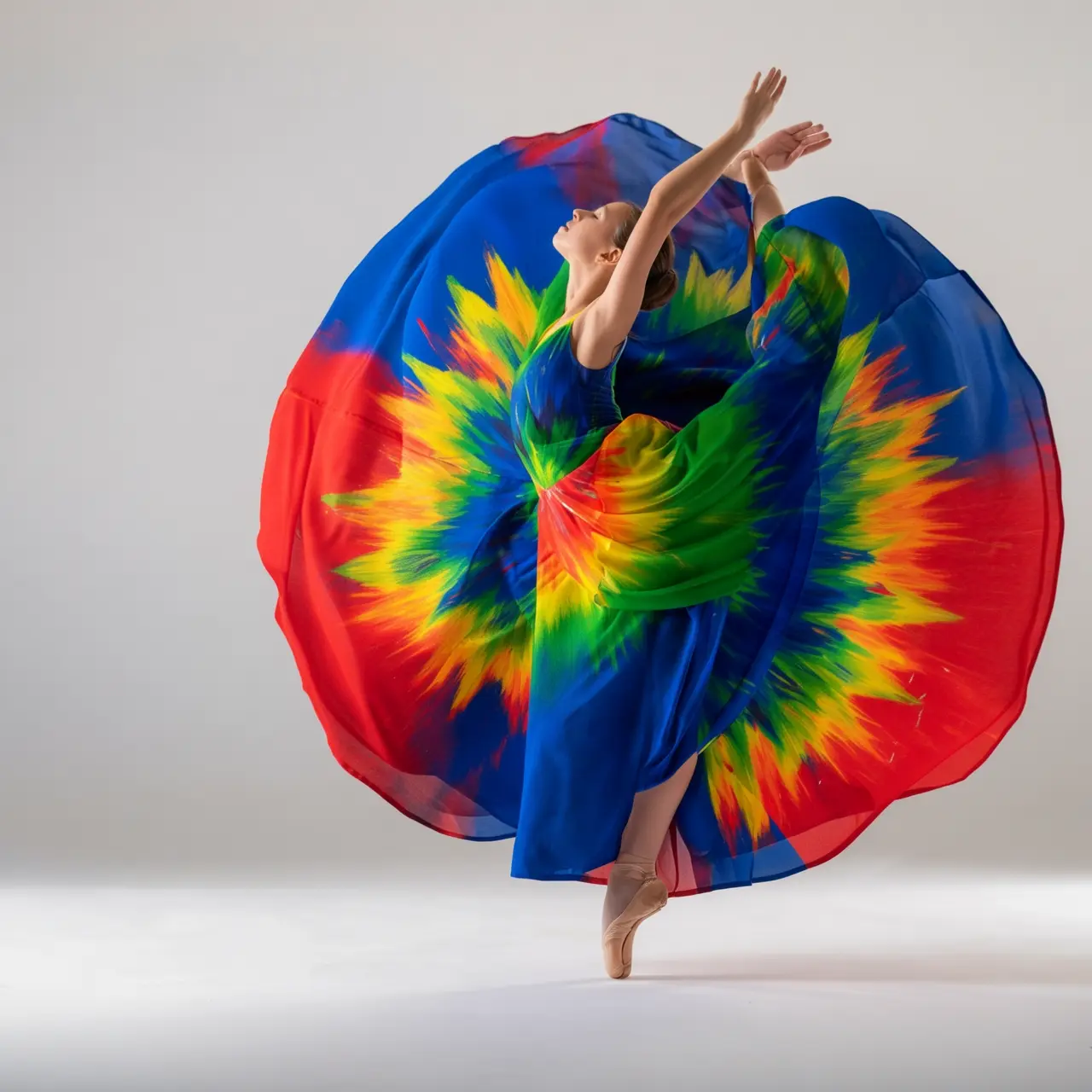
多图融合输入2
多图融合输出2
给图1的裙子按照图2鸟的颜色进行配色,充满艺术感,衣服款式不变,模特不变

主体特征保持

输入图像输出图像
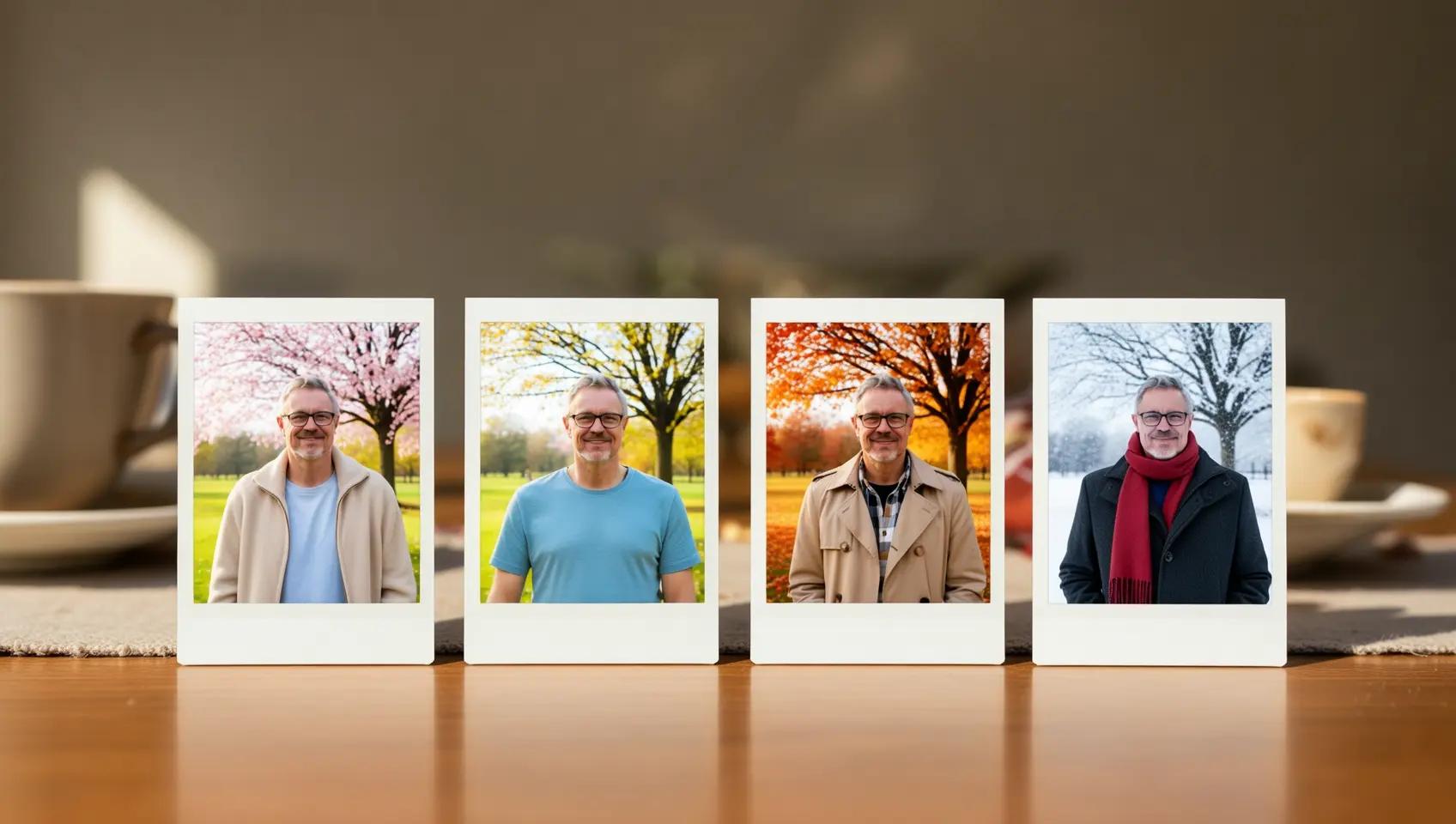
主体特征保持输入1
主体特征保持输出1
主体特征保持输入2
主体特征保持输出2

检测和分割

输入图像输出图像
检测分割输入1
检测分割输出1
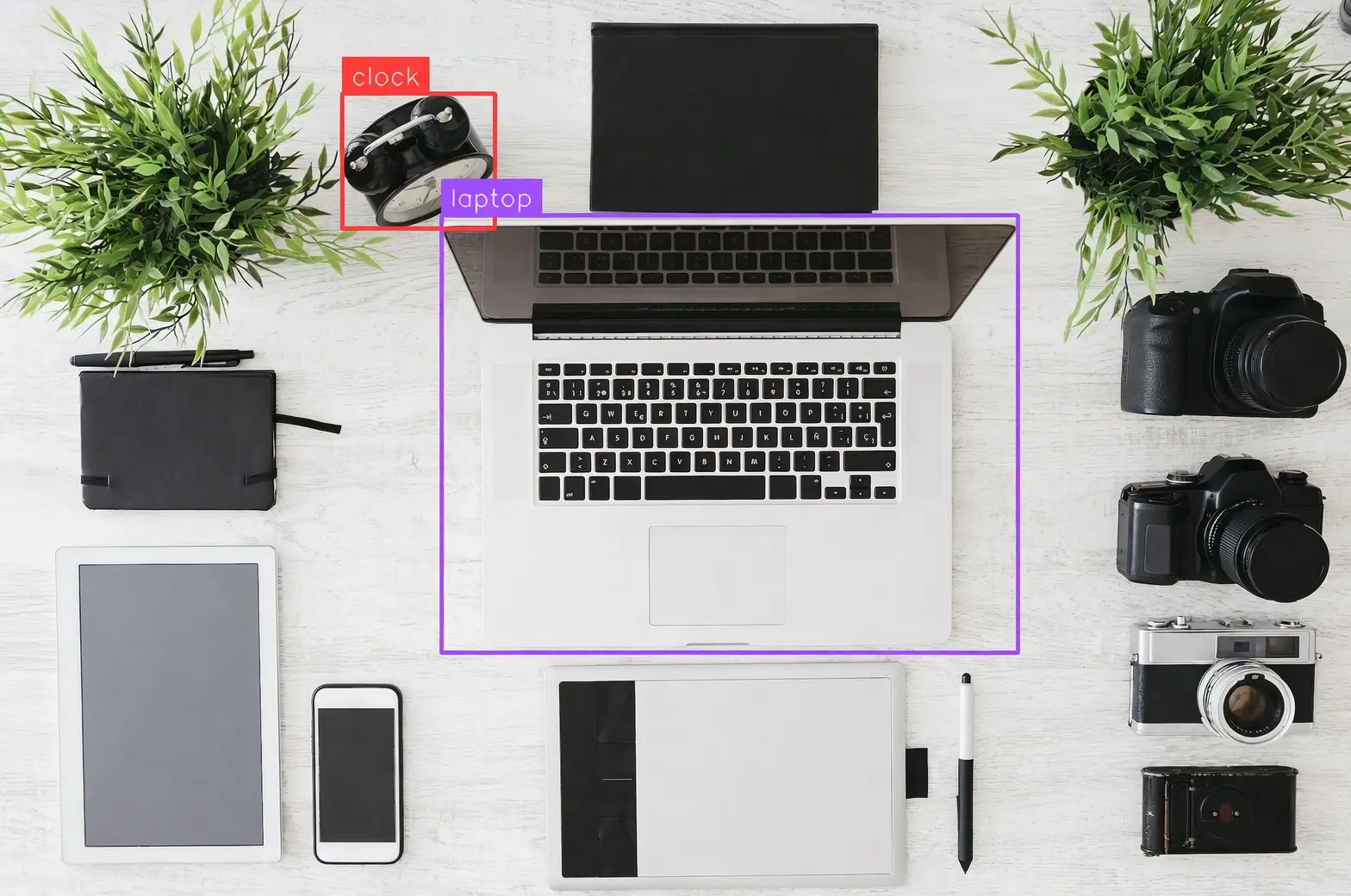
检测图片中的笔记本电脑和闹钟,画框并标注"laptop"和"clock"
检测分割输入2
检测分割输出2
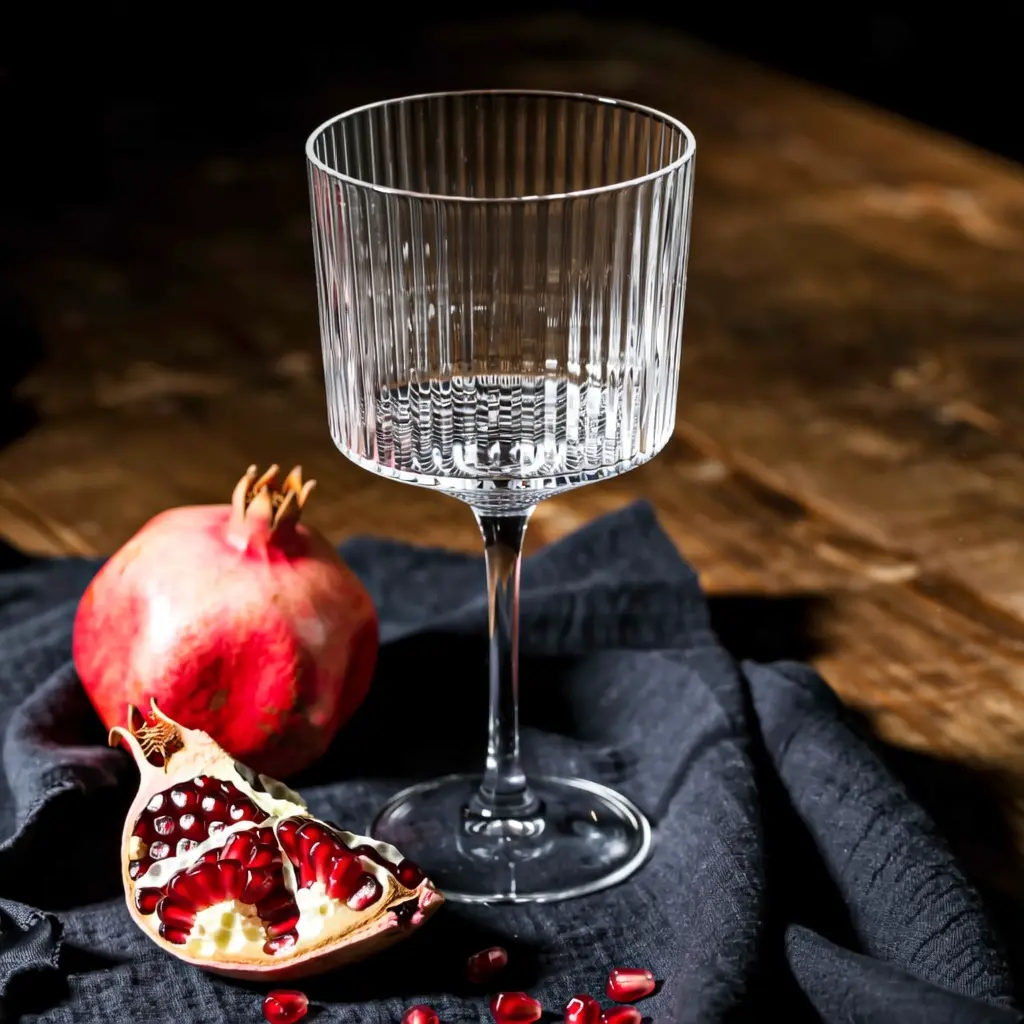
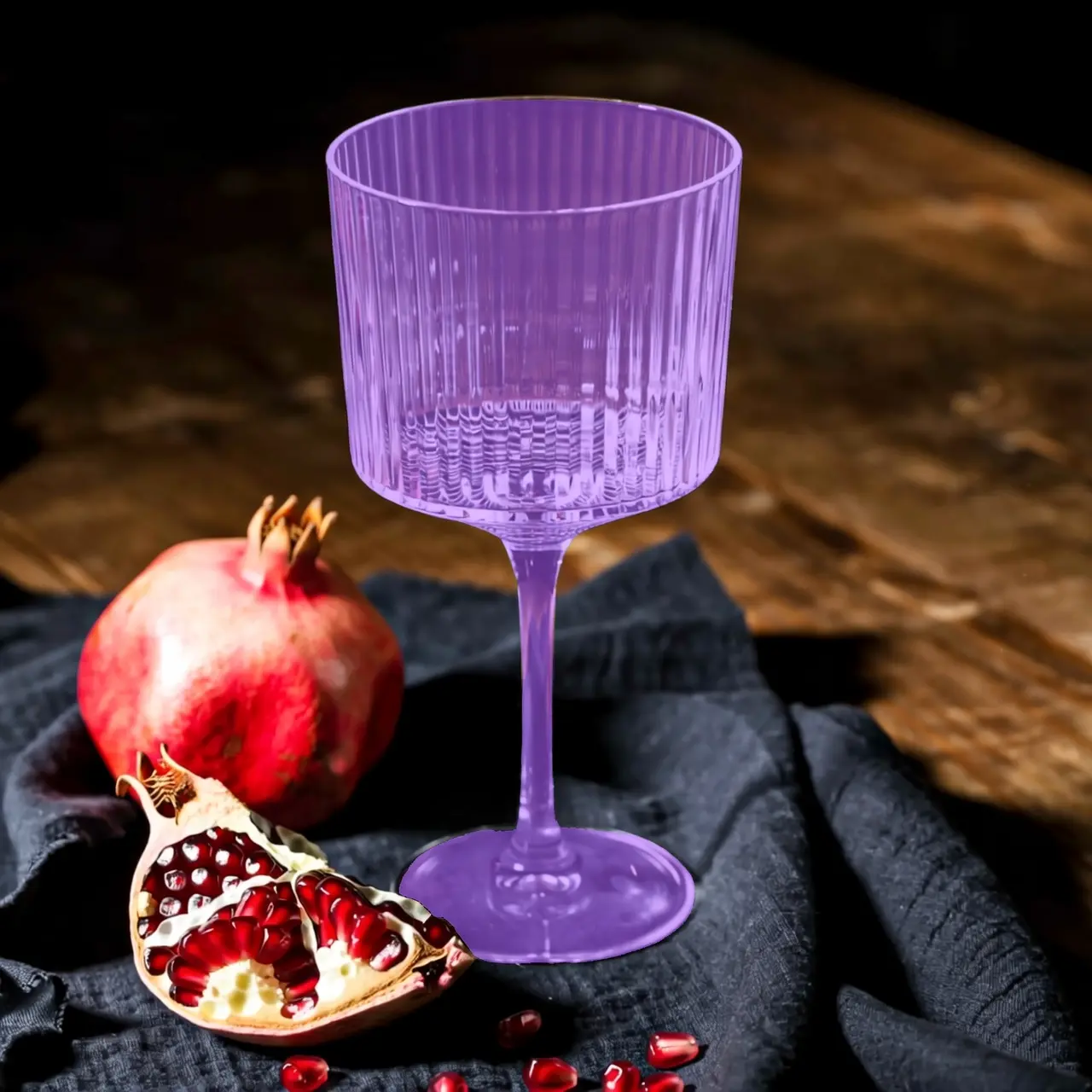
分割图片中的玻璃杯

提取元素

输入图像输出图像
提取元素输入
提取元素输出
从上传照片中提取穿搭单品,将它们以平铺展示的方式排列在纯白背景上,保持真实细节与材质质感,时尚电商风格,适合服装展示。

文本编辑

输入图像输出图像
文本编辑输入1
文本编辑输出1
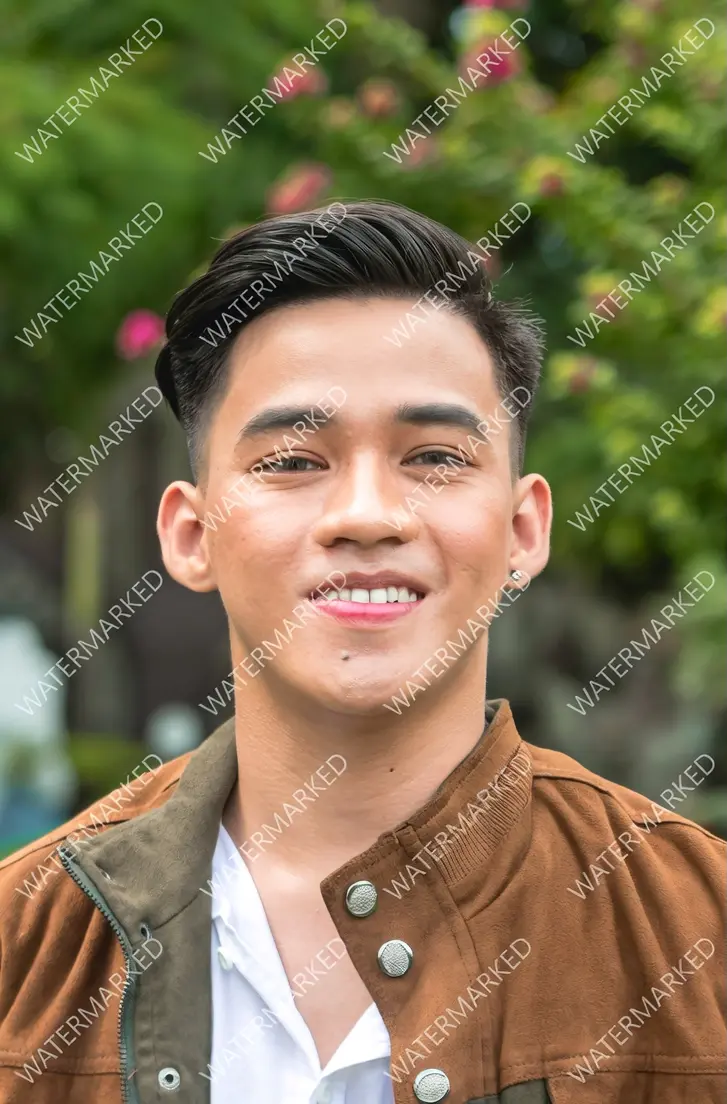
去除全图水印
文本编辑输入2
文本编辑输出2
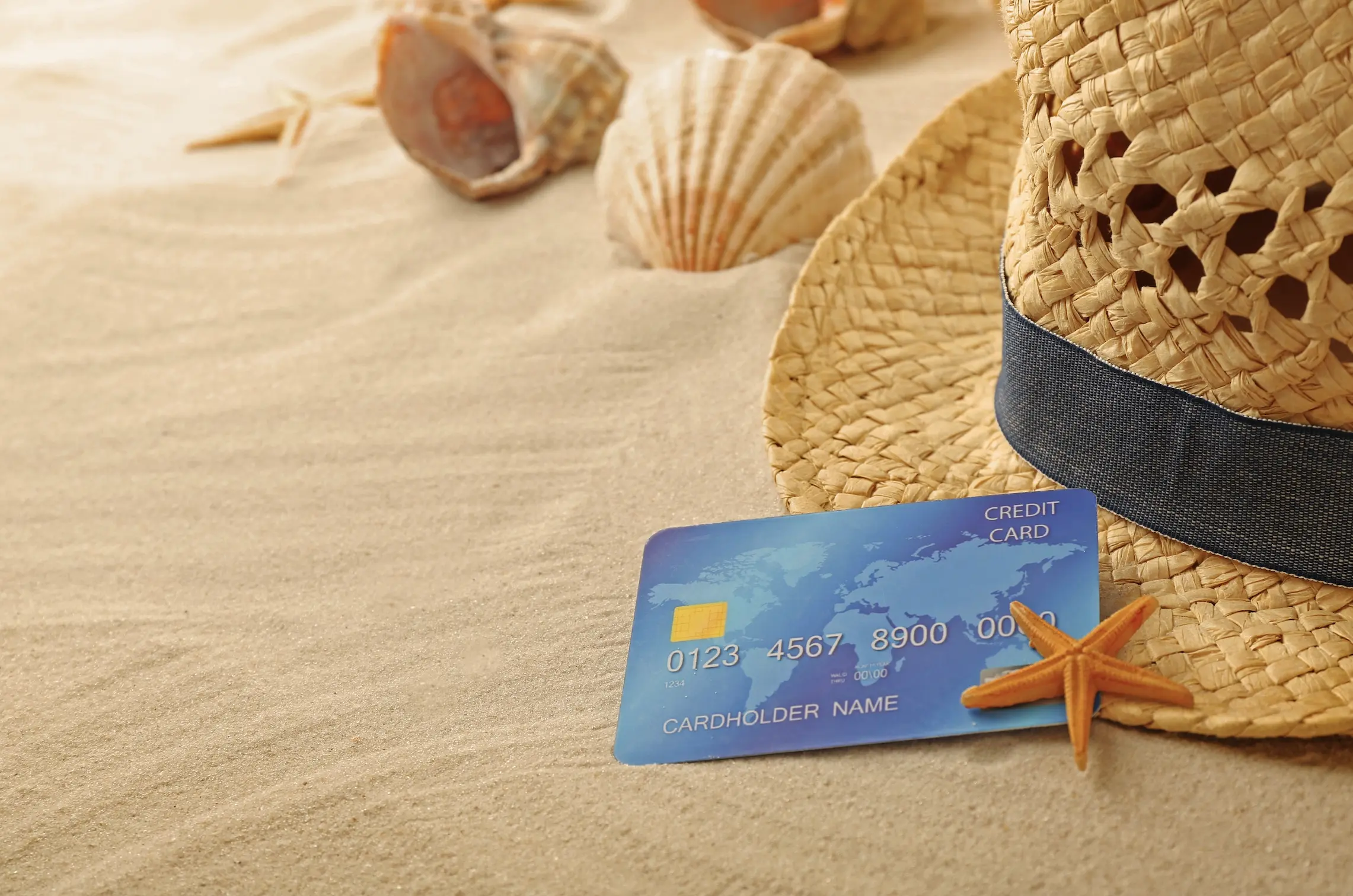
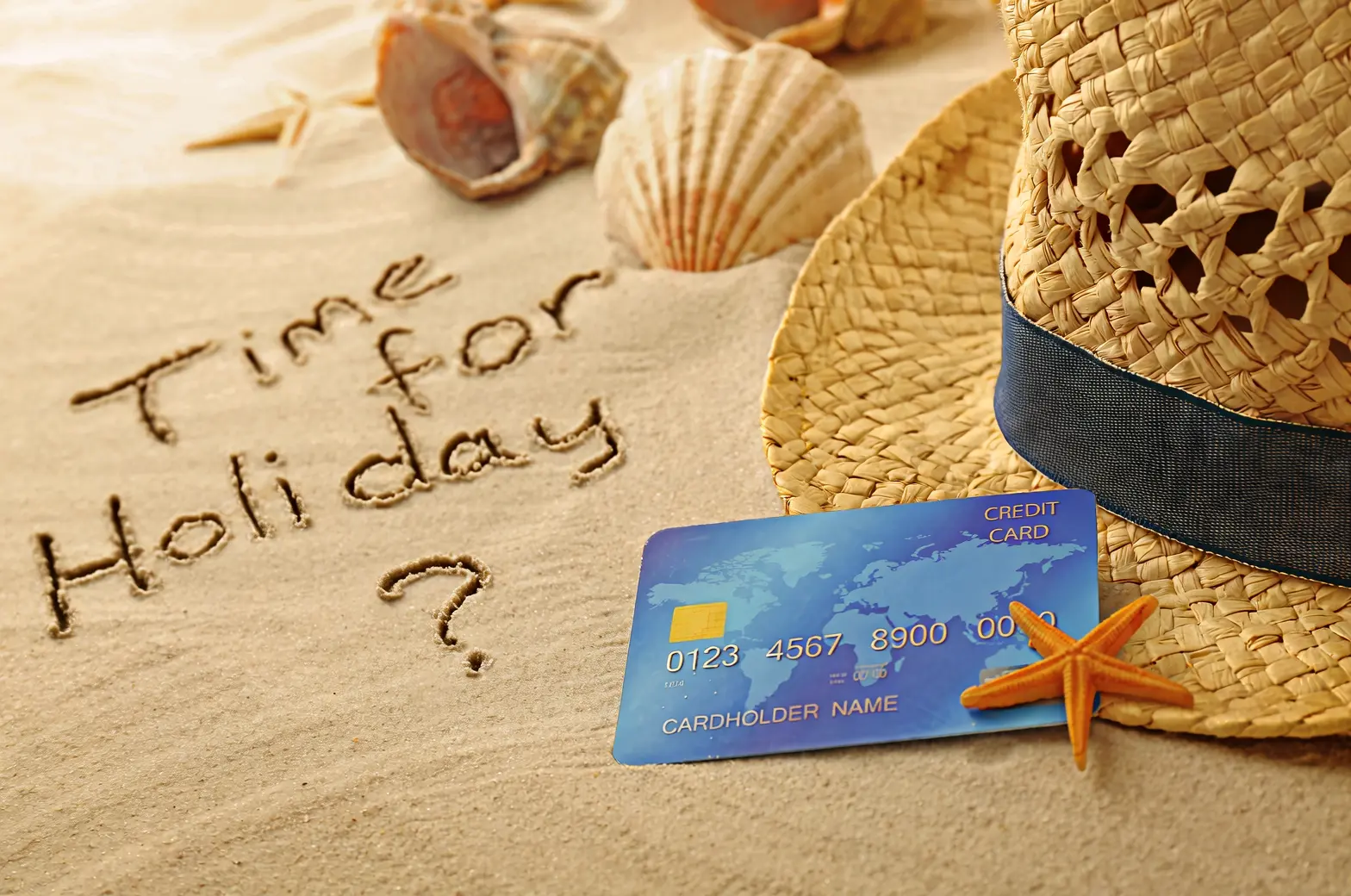
用手在沙滩上随意的写上"Time for Holiday?"
文本编辑输入3
文本编辑输出3
把18改成29,把JUNE改成SEPTEMBER

镜头与视角编辑

输入图像输出图像
镜头编辑输入1
镜头编辑输出1
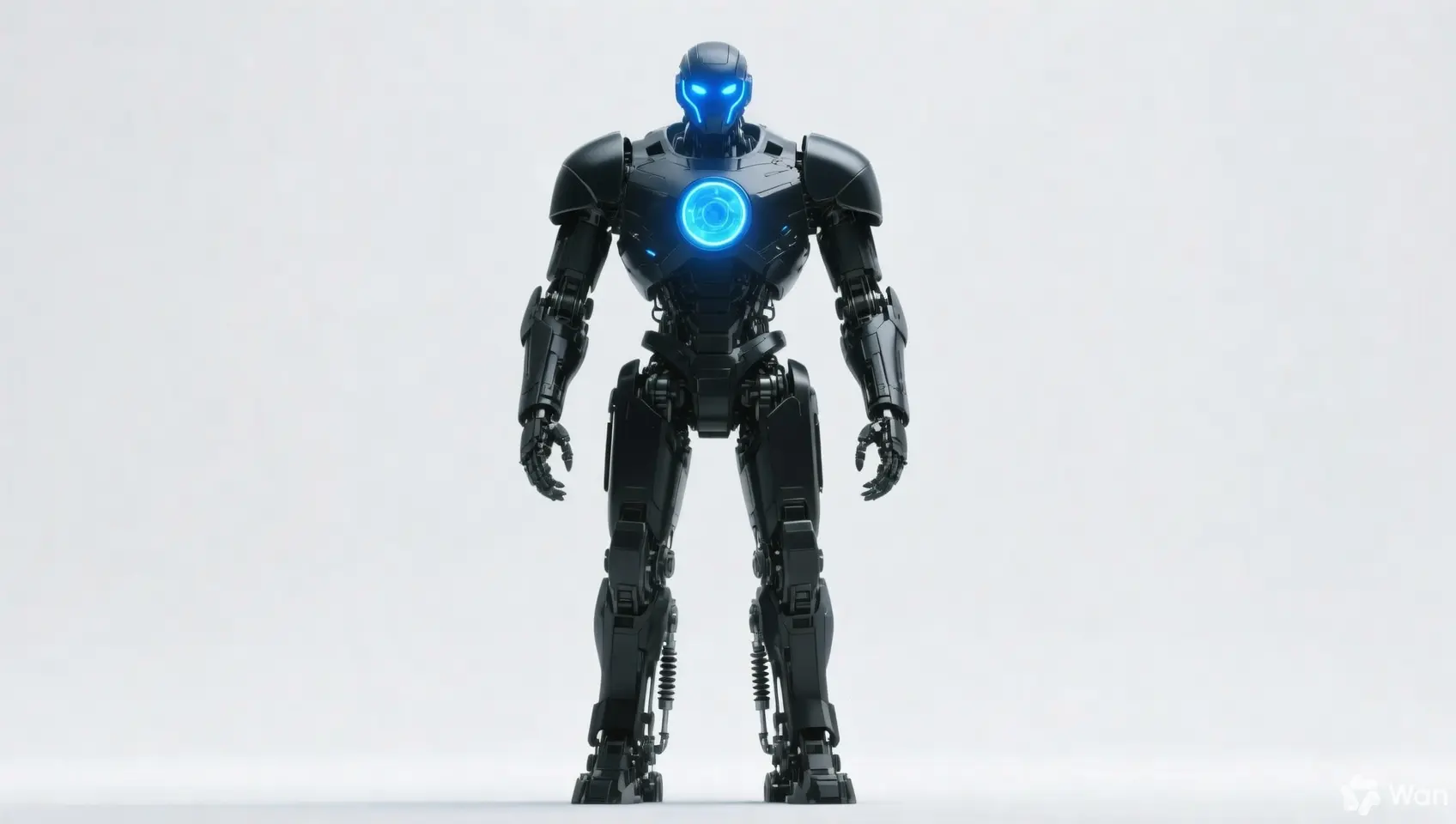
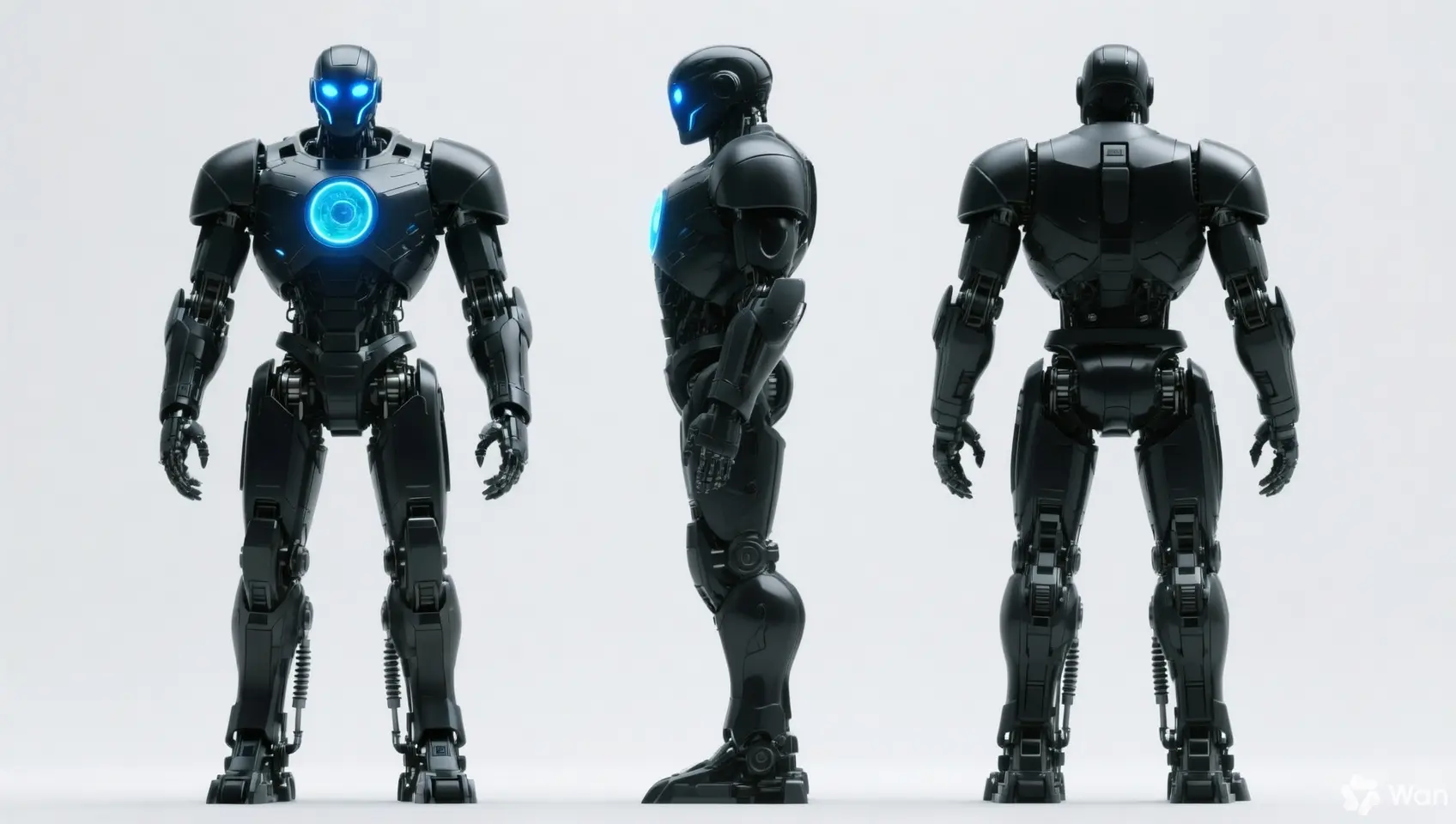
保持人物的特征不变,生成正视图、侧视图和背视图
镜头编辑输入2
镜头编辑输出2
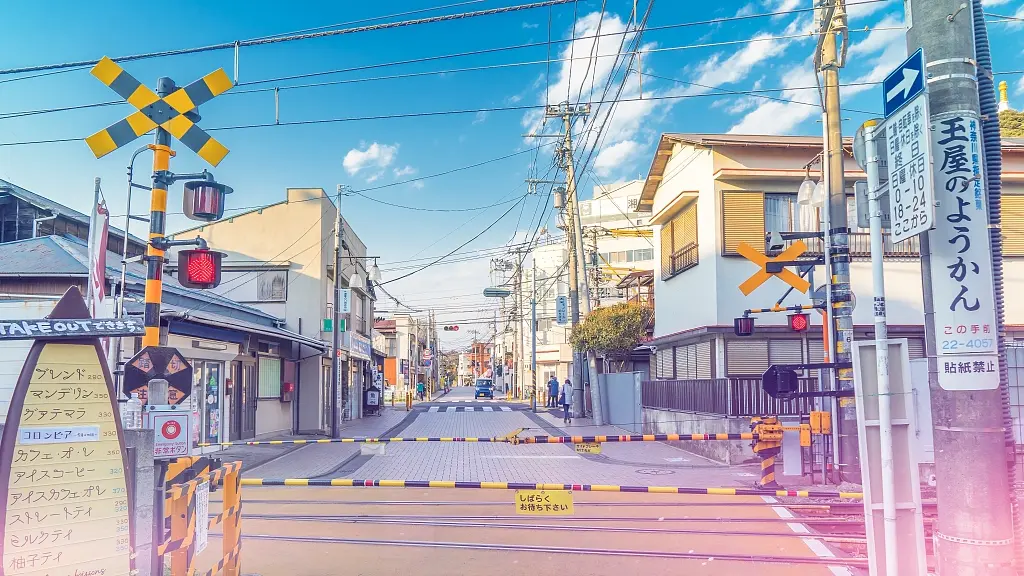
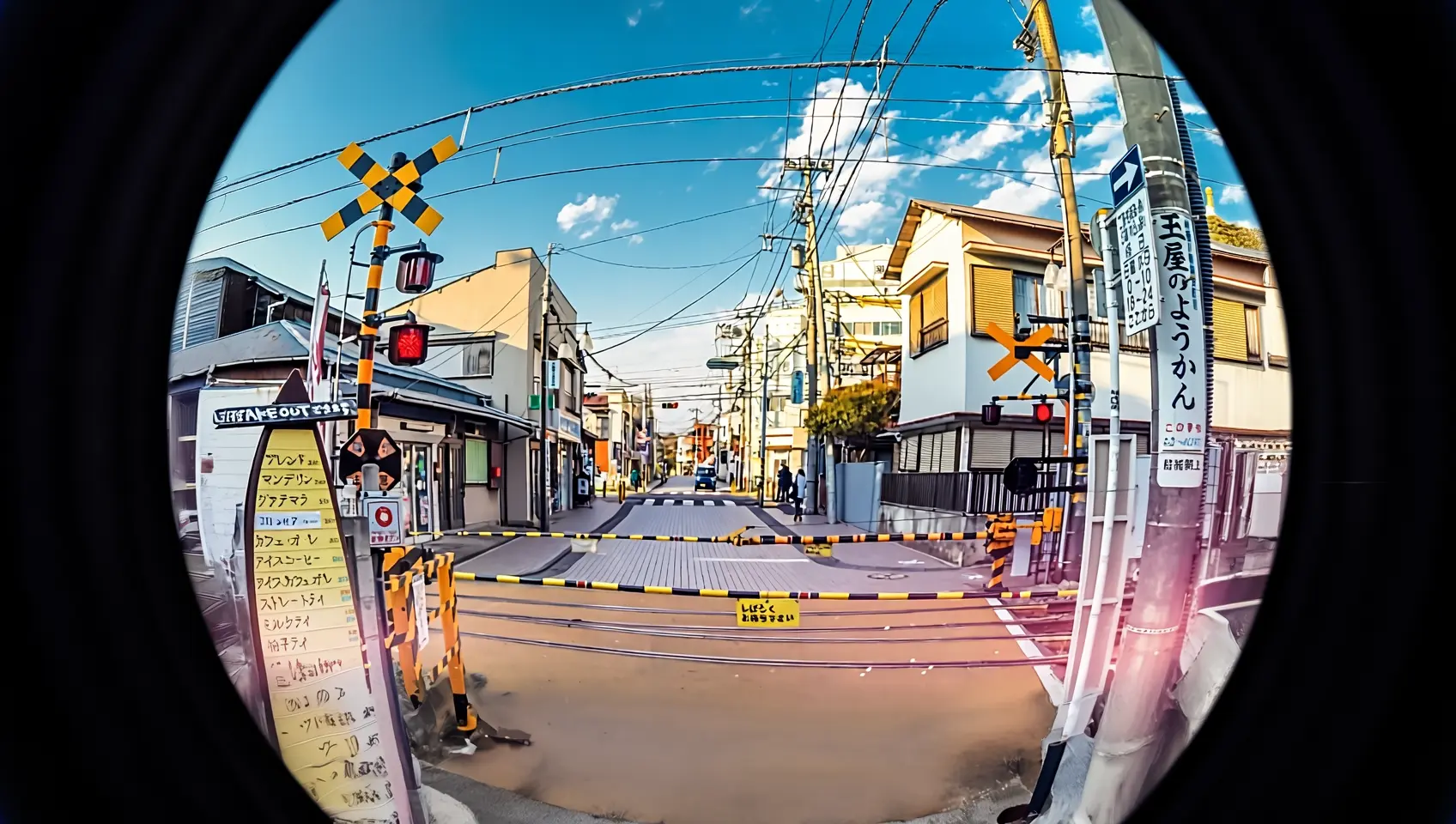
用鱼眼镜头重新拍摄这张照片

输入说明

输入图像规格

规格wan2.7-image-pro、wan2.7-imagewan2.6-imagewan2.5-i2i-preview
输入图像数量0~9 张(0张对应文生图模式)图像编辑 1~4 张 / 图文混排 0~1 张1~3 张
图片格式JPEG、JPG、PNG(不支持透明通道)、BMP、WEBPJPEG、JPG、PNG(不支持透明通道)、BMP、WEBPJPEG、JPG、PNG(不支持透明通道)、BMP、WEBP
图片宽高范围[240, 8000] 像素[240, 8000] 像素[384, 5000] 像素
文件大小≤ 20MB≤ 10MB≤ 10MB
宽高比[1:8, 8:1]不限[1:4, 4:1]

图像输入顺序

多图输入时,按照数组中的顺序定义图像顺序。因此,提示词引用的图像编号需要与图像数组中的顺序一一对应,例如:数组中的第一张图片为"图1",第二张为"图2",或者使用标记形式如"[图1]"、"[图2]"。
{
    "content": [
        {"text": "编辑指令,如:将图1中的闹钟放置到图2的餐桌的花瓶旁边位置"},
        {"image": "https://example.com/image1.png"},
        {"image": "https://example.com/image2.png"}
    ]
}
输入图像1输入图像2输出图像
image (19)-转换自-png
图1
image (20)-转换自-png
图2
04e0fc39-7ad6-41e0-9df9-1f69ac3ce825-转换自-png
提示词:把图1移动到图2上
36ed450d-bd54-4169-b13f-3d0f26d9d360-转换自-png
提示词:把图2移动到图1上

图像传入方式

支持通过以下方式传入图像:
# 使用公网可访问的图片URL
image_url = "https://example.com/your-image.png"
# 在curl中,直接在JSON body中传入URL
"image": "https://example.com/your-image.png"
import os
import base64
import mimetypes

# 格式为 data:{mime_type};base64,{base64_data}
def encode_file(file_path):
  mime_type, _ = mimetypes.guess_type(file_path)
  with open(file_path, "rb") as image_file:
    encoded_string = base64.b64encode(image_file.read()).decode('utf-8')
  return f"data:{mime_type};base64,{encoded_string}"


# 调用编码函数,请将 "/path/to/your/image.png" 替换为您的本地图片文件路径,否则无法运行
image = encode_file("/path/to/your/image.png")
# 本地文件路径格式:file:// + 绝对路径
# Linux/macOS 示例:
image_url = "file://" + "/path/to/your/image.png"
# Windows 示例:
image_url = "file:///" + "C:/path/to/your/image.png"

# 相对路径示例:
image_url = "file://" + "./your-image.png"
此方式仅支持 SDK 调用。curl 请求需使用公网URL或Base64编码。

关键能力

1. 指令遵循(提示词)

参数:messages.content.textinput.prompt(必选)、negative_prompt(可选)。
参数wan2.7-image-pro、wan2.7-imagewan2.6-imagewan2.5-i2i-preview
text必选,最多5000字符必选,最多2000字符不支持
prompt不支持不支持必选,最多2000字符
negative_prompt不支持支持,最多500字符支持,最多500字符

2. 开启prompt智能改写

参数:parameters.prompt_extend(bool,默认为 true)。 此功能可自动扩展和优化较短的Prompt,提升输出图像效果。开启此功能会增加额外耗时。
参数wan2.7-image-pro、wan2.7-imagewan2.6-imagewan2.5-i2i-preview
prompt_extend不支持支持(仅图像编辑模式)支持

3. 设置输出图像分辨率

参数:parameters.size(string),格式为"宽*高"
参数wan2.7-image-pro、wan2.7-imagewan2.6-imagewan2.5-i2i-preview
size方式一:指定输出图片的分辨率(推荐) 编辑模式(传入至少一张图片),可选的输出分辨率档位:1K2K(默认)。1K:输出总像素接近 1024*1024,宽高比与最后一张输入图像一致。2K:输出总像素接近 2048*2048,宽高比与最后一张输入图像一致。方式二:指定生成图像的宽高像素值 总像素在 [768*768, 2048*2048] 之间,宽高比范围为 [1:8, 8:1]。仅文生图场景的 wan2.7-image-pro 支持 4K 分辨率。方式一:参考输入图比例(推荐) 编辑模式(enable_interleave=false),可选的输出分辨率档位:1K(默认)、2K1K:输出总像素接近 1280*1280,宽高比与最后一张输入图像一致。2K:输出总像素接近 2048*2048,宽高比与最后一张输入图像一致。方式二:指定生成图像的宽高像素值 总像素在 [768*768, 2048*2048] 之间,宽高比范围为 [1:4, 4:1]。实际输出图像的像素值为接近指定值的16的倍数。仅支持指定生成图像的宽高像素值 总像素在 [768*768, 1280*1280] 之间,宽高比范围为 [1:4, 4:1]。若未指定size,系统将默认生成总像素为 1280*1280 的图像,宽高比与最后一张输入图像一致。

4. 交互式精准编辑

通过 parameters.bbox_list 参数框选图中需要编辑的物品或位置,实现更准确的编辑效果。仅 wan2.7-image-pro、wan2.7-image 支持此功能。
  • 对应关系:列表长度必须与输入图片数量一致。若某张图片无需编辑,需要在对应位置传入空列表 []
  • 坐标格式:[x1, y1, x2, y2](左上角 x, 左上角 y, 右下角 x, 右下角 y),使用原图绝对像素坐标,左上角对应(0,0),x 轴向右,y 轴向下。
  • 数量限制:单张图片最多支持 2 个边界框。
示例:输入 3 张图片,其中第 2 张无框选,第 1 张有两个框选:
[
  [[0, 0, 12, 12], [25, 25, 100, 100]],
  [],
  [[10, 10, 50, 50]]
]
方法一:OpenCV 画框在图片上拖拽鼠标画框,精准直观:
# 安装依赖:pip install opencv-python
import cv2
import urllib.request

# 下载示例图片(替换为您自己的图片 URL 或本地路径)
image_url = "https://img.alicdn.com/imgextra/i3/O1CN01SfG4J41UYn9WNt4X1_!!6000000002530-49-tps-1696-960.webp"
urllib.request.urlretrieve(image_url, "example.webp")

# 读取图片并弹出交互窗口
img = cv2.imread("example.webp")
# 在弹出的窗口中用鼠标拖拽画框,按 Enter 确认选区,按 Esc 取消
x, y, w, h = cv2.selectROI("Draw bounding box (Enter=confirm, Esc=cancel)", img)
cv2.destroyAllWindows()

# 将 OpenCV 返回的 (x, y, w, h) 转换为 bbox_list 所需的 [x1, y1, x2, y2] 格式
bbox = [x, y, x + w, y + h]
print(f"框选坐标: {bbox}")
方法二:视觉理解模型通过 qwen3.6-plus 自动识别目标区域坐标,用自然语言描述目标即可获取坐标:
# 安装依赖:pip install dashscope pillow
import os
import json
from dashscope import MultiModalConversation
import dashscope
from PIL import Image
import urllib.request

dashscope.base_http_api_url = "https://dashscope.aliyuncs.com/api/v1"


def get_bbox_list(image, prompt):
  """
  通过 qwen3.6-plus 识别图片中的目标区域,返回绝对像素坐标列表。
  """
  full_prompt = (
    prompt + "\n"
    "请根据以上描述,返回对应区域的坐标。\n"
    "最多返回2个区域,优先返回最匹配的目标。\n"
    "严格按照JSON二维列表格式返回:[[x1, y1, x2, y2], ...]\n"
    "每组坐标:[左上角x, 左上角y, 右下角x, 右下角y]\n"
    "使用原图绝对像素坐标,左上角为(0,0),x轴向右,y轴向下。\n"
    "如果只有一个区域,也必须使用二维列表:[[x1, y1, x2, y2]]\n"
    "只返回JSON列表,不要返回其他任何内容。"
  )

  messages = [
    {'role': 'user',
     'content': [
       {'image': image},
       {'text': full_prompt}
     ]}
  ]

  response = MultiModalConversation.call(
    api_key=os.getenv('DASHSCOPE_API_KEY'),
    model='qwen3.6-plus',
    messages=messages,
  )

  text = response.output.choices[0].message.content[0]["text"]
  text = text.replace("```json", "").replace("```", "").strip()
  coords = json.loads(text)

  if coords and not isinstance(coords[0], list):
    coords = [coords]

  # 获取图片尺寸,用于坐标转换
  if image.startswith("file://"):
    local_path = image[len("file://"):]
    img = Image.open(local_path)
  else:
    tmp_path = "temp_bbox_image"
    urllib.request.urlretrieve(image, tmp_path)
    img = Image.open(tmp_path)
  width, height = img.size

  # 模型返回归一化坐标 [0, 999],转换为绝对像素坐标
  bbox_list = []
  for box in coords:
    bbox_list.append([
      int(box[0] / 1000 * width),
      int(box[1] / 1000 * height),
      int(box[2] / 1000 * width),
      int(box[3] / 1000 * height)
    ])

  return bbox_list


# === 使用示例 ===
image_url = "https://img.alicdn.com/imgextra/i3/O1CN01ewUWhg1eS3VqJ3wap_!!6000000003869-49-tps-2048-2048.webp"

# 按名称选取目标
bbox = get_bbox_list(image_url, "咖啡杯")

# 按位置描述选取目标
bbox = get_bbox_list(image_url, "盘子正中间的水果")

计费与限流

  • 模型免费额度和计费单价请参见模型列表与价格
  • 模型限流请参见限流
  • 计费说明:
    • 按成功生成的图像张数计费。仅当接口返回task_statusSUCCEEDED并成功生成图像后,才会计费。
    • 模型调用失败或处理错误不产生任何费用,也不消耗免费额度

API参考

各模型使用不同的端点和请求结构:
模型端点
wan2.7-imagewan2.7-image-prowan2.6-image同步接口:POST https://dashscope.aliyuncs.com/api/v1/services/aigc/multimodal-generation/generation
异步接口:POST https://dashscope.aliyuncs.com/api/v1/services/aigc/image-generation/generation
wan2.5-i2i-preview异步接口:POST https://dashscope.aliyuncs.com/api/v1/services/aigc/image2image/image-synthesis
  • wan2.7 / wan2.6messages 格式,在 messages[].content 数组中,通过 image 传入图像,通过 text 传入提示词。
  • wan2.5:通过 input.images 数组传入图像,通过 input.prompt 传入提示词。
输入和输出参数请参见 Wan 2.7 API参考Wan 2.6 API参考Wan 2.5 API参考